
Public setup guide
HubSpot setup guide
Everything you need to install PayClarity, approve access, configure pipelines and commission rules, and verify your first sync - before and after you connect your portal.
Overview
PayClarity is a HubSpot-native commission platform. After you install and authorize the app, PayClarity syncs deals, owners, pipelines, and line items from your HubSpot CRM, calculates commission lines from your rules, and can write commission totals back to custom deal properties in HubSpot.
This guide is public - you do not need a PayClarity account to read it. Use it to understand the full user journey before installing from the HubSpot Marketplace or from payclarity.io/login.
- Typical setup time: 10–20 minutes
- Any HubSpot user who can install marketplace apps may connect the portal
- No custom code required - OAuth + guided onboarding wizard
Requirements
- A HubSpot account with Sales Hub or CRM access to deals, pipelines, and owners
- Permission to install apps on your HubSpot portal (marketplace or OAuth consent)
- Deals organized in one or more pipelines you want to commission on
- Modern browser; PayClarity runs at payclarity.io
Not required for HubSpot setup: QuickBooks, Xero, or other accounting connectors. Those are optional and used later to match payments to HubSpot deals - see Integrations.
Installation paths
There are two common ways to start:
Path A - Install from HubSpot Marketplace (recommended)
- Open the HubSpot Marketplace and search for PayClarity.
- Click Install app and choose the HubSpot portal (account) to connect.
- You are redirected to HubSpot OAuth, then back to PayClarity to create your workspace and start onboarding.
Step 1
HubSpot Marketplace listing
Search for PayClarity and click Install app, then choose the HubSpot portal to connect.
PayClarity
Sales commission software for HubSpot
Calculate, split, and approve commissions on HubSpot deals - with rules, payouts, and optional accounting sync.
Install on the HubSpot portal you want to commission
Path B - Sign in from PayClarity first
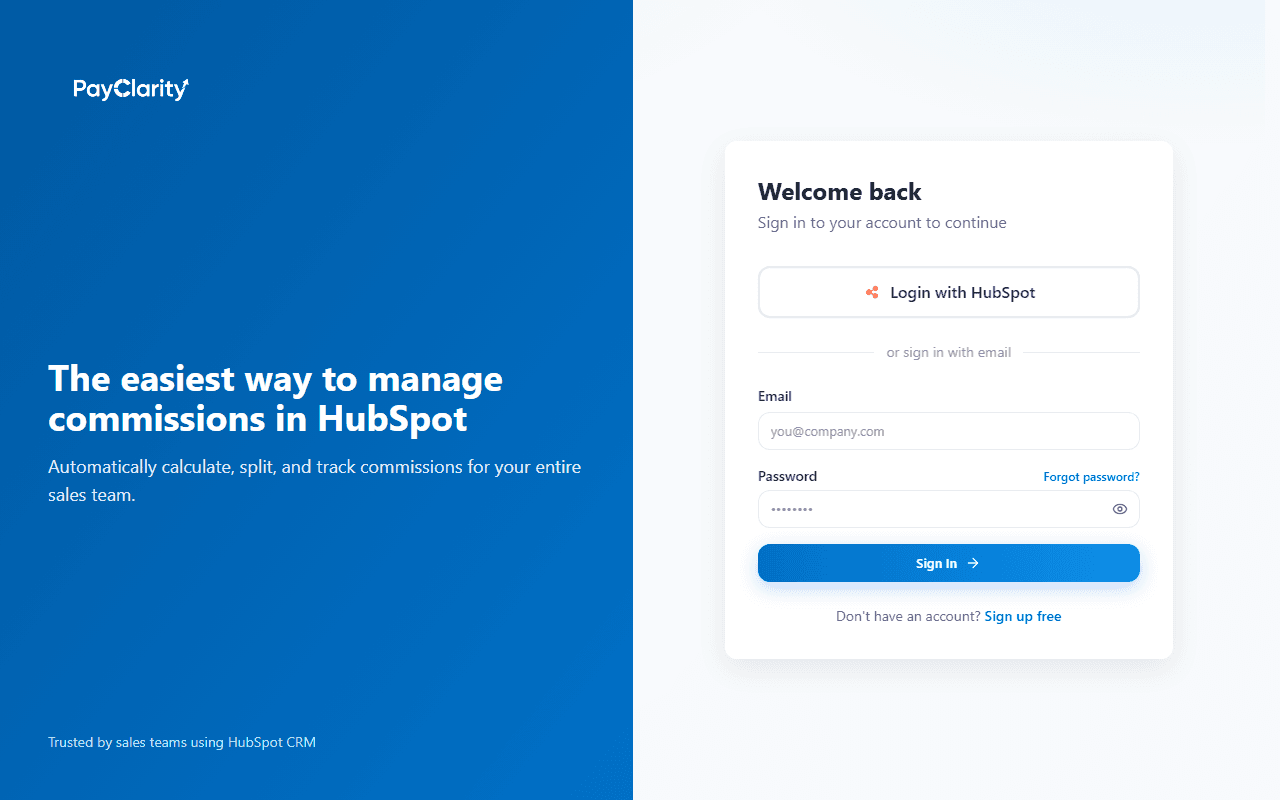
- Go to /signup or /login.
- Click Login with HubSpot (OAuth). This binds your PayClarity workspace to your HubSpot
portal_id. - Complete the onboarding wizard described below.
Step 2
PayClarity login - Login with HubSpot
OAuth entry point at /login and /signup. Email/password sign-in is available but HubSpot OAuth is required to sync CRM data.
OAuth & permissions
PayClarity uses standard HubSpot OAuth 2.0. After you approve access, tokens are stored securely per workspace and refreshed automatically. The OAuth redirect URL registered for production is:
https://payclarity.io/api/auth/hubspot
Step 3
HubSpot OAuth consent screen
Review the permissions PayClarity requests. All scopes must match the app configuration in the HubSpot developer portal.
PayClarity wants to access your HubSpot account
Review permissions before continuing
- ✓Read and write deals
- ✓Read deal schemas & create properties
- ✓Read contacts, companies, line items, owners
- ✓Read user settings (admin check)
Required OAuth scopes
| Scope | Why PayClarity needs it |
|---|---|
| oauth | HubSpot developer-platform requirement |
| crm.objects.deals.read / .write | Sync deals; write commission fields back to deals |
| crm.schemas.deals.read / .write | Read deal properties; create PayClarity custom properties |
| crm.objects.owners.read | Map deal owners to reps; team picker in onboarding |
| crm.objects.contacts.read | Linked contact context on deals |
| crm.objects.companies.read | Linked company context on deals |
Full scope list in app config: oauth, crm.objects.companies.read, crm.objects.contacts.read, crm.objects.deals.read, crm.objects.deals.write, crm.objects.owners.read, crm.schemas.deals.read, crm.schemas.deals.write
Deal properties created automatically
On first install, PayClarity creates these read-only custom deal properties in your HubSpot portal (you do not create them manually):
commission_total- Commission Totalcommission_status- Commission Statuscommission_breakdown- Commission Breakdowncommission_rate- Commission Ratecommission_rule- Commission Rule
PayClarity ignores webhook echoes for these properties to prevent sync loops when writing commission totals back to HubSpot.
Onboarding wizard (PayClarity)
After OAuth, new workspaces are guided through an 8-step onboarding wizard at /onboarding. You can re-run it later from Settings → Re-run setup wizard.
- Welcome - overview of the guided setup
- HubSpot - confirm CRM connection (or Sign in with HubSpot)
- Users - invite teammates from your HubSpot user list
- Pipelines - choose which deal pipelines generate commissions
- Commission - who earns (owner, owner+SDR, multi-split)
- First rule - pick a template and name
- Rule details - rates, conditions, splits, scope
- Launch - review; PayClarity runs initial owner sync, deal sync, and commission calculation
Step 4
Onboarding - HubSpot connected
Step 2 confirms OAuth succeeded and commission deal properties were created in your portal.
Connect HubSpot
Sign in so we can read pipelines, deals, and owners.
✓ HubSpot is connected
Commission deal properties were created in your portal. Continue to invite your team.
Step 5
Onboarding - Select pipelines
Step 4: only deals in selected pipelines are commissioned. Use Sync HubSpot & reload pipelines if the list is empty.
Which deal pipelines generate commissions?
Pipelines are loaded from HubSpot after you connect.
- ✓Sales Pipeline
- ✓Renewals
- Partner Deals
Step 6
Onboarding - Launch
Final step runs the first full sync and opens your dashboard when complete.
Ready to launch
We'll sync deals, owners, and run your first commission calculation.
HubSpot portal: Connected
Pipelines: 2 selected
First rule: Standard % of deal amount
What to configure in HubSpot
PayClarity reads your existing CRM structure. Before or after install, ensure:
- Deal pipelines & stages reflect your sales process (PayClarity does not create pipelines)
- Deal owners are assigned on deals you expect to commission
- Amounts (and line items, if used in rules) are accurate on closed or payable stages
- Optional: set your HubSpot fiscal year if you use fiscal reporting in PayClarity settings
You do not need to configure webhooks in the HubSpot CRM UI - deal webhooks are registered on the PayClarity developer app for real-time updates after install.
Sync, verify & ongoing use
After onboarding, verify data in PayClarity:
- Open Dashboard → Deals to see synced HubSpot deals and commission status.
- If deals are missing, go to Settings and run Full HubSpot Sync.
- Build or edit rules under Rules; changes recalculate commission lines on matching deals.
- Use Reports and Payouts for approvals and payroll-ready exports.
Step 7
Settings - HubSpot connection & Full HubSpot Sync
Reconnect OAuth or re-run the wizard from Settings. Data Sync runs a full reload of deals and owners.
Settings
Workspace
HubSpot
Data sync
HubSpot Connection
Portal ID · Connected
Full HubSpot sync
Reload deals, owners, and commission lines
Step 8
Dashboard - Deals after sync
Each row is a HubSpot deal with stage, owner, and calculated commission. Commission fields are also written back to HubSpot deal properties.
Deals
Synced from HubSpot · commission status per deal
| Deal | Stage | Owner | Commission |
|---|---|---|---|
| Acme - Enterprise | Closed Won | Jordan Lee | $4,200 |
| Northwind Renewal | Negotiation | Sam Patel | $890 |
| Globex Pilot | Proposal | Alex Kim | Pending |
Optional: accounting integrations
HubSpot setup is complete once deals sync and commissions calculate. If you pay commissions only when cash is collected, you can later connect QuickBooks Online, Xero, Zoho Books, or FreshBooks under Dashboard → Integrations to map payments to HubSpot deals. That step is independent of the HubSpot OAuth flow described here.
Troubleshooting
- “You are not invited to this workspace”
- After the first user connects a portal, additional PayClarity users need an email invite from a workspace admin - or must sign in with a PayClarity account already linked to that workspace.
- OAuth scope mismatch error
- The scopes in the install URL must exactly match the PayClarity app in the HubSpot developer account. If you self-host PayClarity, align
HUBSPOT_OAUTH_SCOPESwith your app config. - No pipelines in onboarding
- Click Sync HubSpot & reload pipelines on the Pipelines step, or run Full HubSpot Sync in Settings, then refresh the wizard.
- Token expired / wrong portal
- Settings → Reconnect HubSpot (
/api/auth/hubspot?force=1). Ensure you authorize the same HubSpot portal as your workspace. - Commissions not updating on deal changes
- Run Full HubSpot Sync. Confirm the deal is in a selected pipeline and matches an active rule. Deal webhooks process updates within minutes under normal conditions.
More answers: FAQ
Support
Email connect@payclarity.io for install help, marketplace listing questions, or partner onboarding.
Signed-in users can also open in-app support from the dashboard Help center.